Skip Navigation
Show nav
Heroku Dev Center Dev Center
  • Get Started
  • Documentation
  • Changelog
  • Search
Heroku Dev Center Dev Center
  • Get Started
    • Node.js
    • Ruby on Rails
    • Ruby
    • Python
    • Java
    • PHP
    • Go
    • Scala
    • Clojure
    • .NET
  • Documentation
  • Changelog
  • More
    Additional Resources
    • Home
    • Elements
    • Products
    • Pricing
    • Careers
    • Help
    • Status
    • Events
    • Podcasts
    • Compliance Center
    Heroku Blog

    Heroku Blog

    Find out what's new with Heroku on our blog.

    Visit Blog
  • Log in or Sign up
View categories

Categories

  • Heroku Architecture
    • Compute (Dynos)
      • Dyno Management
      • Dyno Concepts
      • Dyno Behavior
      • Dyno Reference
      • Dyno Troubleshooting
    • Stacks (operating system images)
    • Networking & DNS
    • Platform Policies
    • Platform Principles
    • Buildpacks
  • Developer Tools
    • AI Tools
    • Command Line
    • Heroku VS Code Extension
  • Deployment
    • Deploying with Git
    • Deploying with Docker
    • Deployment Integrations
  • Continuous Delivery & Integration (Heroku Flow)
    • Continuous Integration
  • Language Support
    • Node.js
      • Troubleshooting Node.js Apps
      • Working with Node.js
      • Node.js Behavior in Heroku
    • Ruby
      • Rails Support
        • Working with Rails
      • Working with Bundler
      • Working with Ruby
      • Ruby Behavior in Heroku
      • Troubleshooting Ruby Apps
    • Python
      • Working with Python
      • Background Jobs in Python
      • Python Behavior in Heroku
      • Working with Django
    • Java
      • Java Behavior in Heroku
      • Working with Java
      • Working with Maven
      • Working with Spring Boot
      • Troubleshooting Java Apps
    • PHP
      • PHP Behavior in Heroku
      • Working with PHP
    • Go
      • Go Dependency Management
    • Scala
    • Clojure
    • .NET
      • Working with .NET
  • Databases & Data Management
    • Heroku Postgres
      • Postgres Basics
      • Postgres Getting Started
      • Postgres Performance
      • Postgres Data Transfer & Preservation
      • Postgres Availability
      • Postgres Special Topics
      • Heroku Postgres Advanced (Limited GA)
      • Migrating to Heroku Postgres
    • Heroku Key-Value Store
    • Apache Kafka on Heroku
    • Other Data Stores
  • AI
    • Inference Essentials
    • Inference API
    • Inference Quick Start Guides
    • AI Models
    • Tool Use
    • AI Integrations
    • Vector Database
  • Monitoring & Metrics
    • Logging
  • App Performance
  • Add-ons
    • All Add-ons
  • Collaboration
  • Security
    • App Security
    • Identities & Authentication
      • Single Sign-on (SSO)
    • Private Spaces
      • Infrastructure Networking
    • Compliance
  • Heroku Enterprise
    • Enterprise Accounts
    • Enterprise Teams
  • Patterns & Best Practices
  • Extending Heroku
    • Platform API
    • App Webhooks
    • Heroku Labs
    • Building Add-ons
      • Add-on Development Tasks
      • Add-on APIs
      • Add-on Guidelines & Requirements
    • Building CLI Plugins
    • Developing Buildpacks
    • Dev Center
  • Accounts & Billing
  • Troubleshooting & Support
  • Integrating with Salesforce
    • Heroku AppLink
      • Heroku AppLink Reference
      • Working with Heroku AppLink
      • Getting Started with Heroku AppLink
    • Heroku Connect (Salesforce sync)
      • Heroku Connect Administration
      • Heroku Connect Reference
      • Heroku Connect Troubleshooting
    • Other Salesforce Integrations
  • Databases & Data Management
  • Apache Kafka on Heroku
  • Apache Kafka on Heroku

Apache Kafka on Heroku

English — 日本語に切り替える

Table of Contents [expand]

  • Use Cases
  • Kafka Concepts
  • Preparing Your Development Environment
  • Plans and Configurations
  • Provisioning the Add-On
  • Sharing Kafka Between Apps
  • Viewing Cluster Information
  • Viewing Topics Information
  • Upgrading an Apache Kafka on Heroku Plan
  • Managing Kafka
  • Kafka Versions and Clients
  • Connecting to a Kafka Cluster
  • Connecting to a Private or Shield Kafka Cluster From an External Resource
  • Monitoring Via Logs
  • Regions
  • Node Failure Exercise
  • Removing the Add-on

Last updated June 08, 2026

Apache Kafka on Heroku is an add-on that provides Kafka as a service with full integration into the Heroku platform.

Apache Kafka is a distributed commit log for fast, fault-tolerant communication between producers and consumers using message-based topics. Kafka provides the messaging backbone for distributed applications that handle billions of events and millions of transactions. Kafka is designed to move large volumes of ephemeral data with a high degree of reliability and fault tolerance.
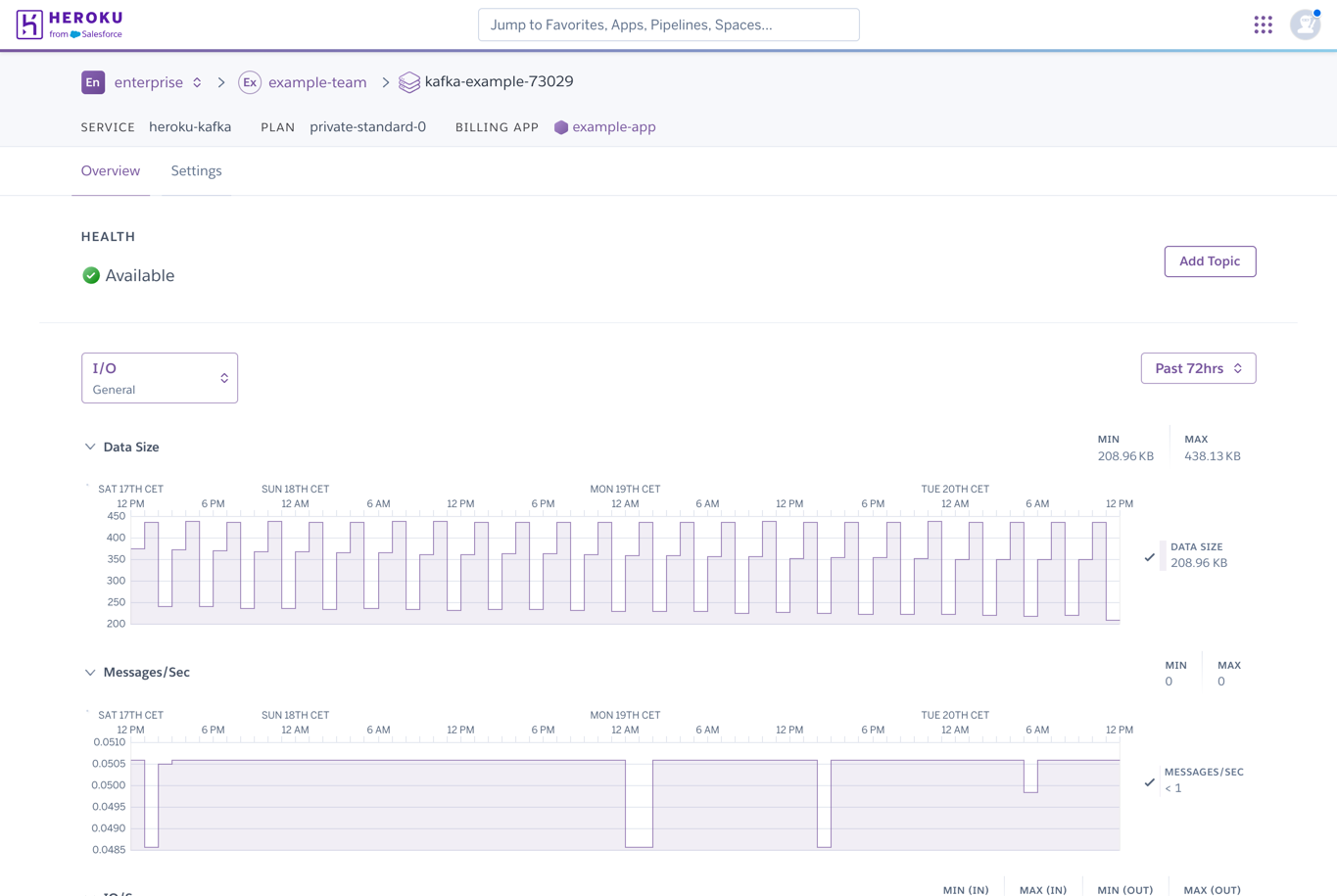
Use Cases

Use Kafka to design and implement architectures for many important use cases, such as:

Elastic Queuing

Kafka makes it easy for systems to accept large volumes of inbound events without putting volatile scaling demands on downstream services. These downstream services can pull from event streams in Kafka when they have capacity, instead of being reactive to the “push” of events. This design improves scaling, handling fluctuations in load, and general stability.

Data Pipelines and Analytics

Apps at scale often need analytics or extract, transform, and load (ETL) pipelines to get the most value from their data. Kafka’s immutable event streams enable developers to build highly parallel data pipelines for transforming and aggregating data. This process means that developers can achieve faster and more stable data pipelines than what’s possible with batch systems or mutable data.

Microservice Coordination

Many apps move to microservice-style architectures as they scale, and encounter challenges: service discovery, managing dependencies between services, and coordinating service interactions. Apps that use Kafka for communication between services can simplify these design concerns dramatically. Kafka makes it easy for a service to bootstrap into the microservice network, and discover which Kafka topics to send and receive messages on. Kafka reduces ordering and dependency challenges, and topic-based coordination lowers the overhead of service discovery when you manage messages between services in Kafka.

Kafka Concepts

A Kafka cluster composes of brokers, instances that run Kafka. Each plan includes a fixed number of brokers (3 for standard, 8 for extended plans) to provide capacity, resilience, and parallelism.

Producers are clients that write to Kafka brokers, while consumers are clients that read from Kafka brokers.

Brokers manage streams of messages, events sent to Kafka, in topics. You can configure topics with a range of options, such as retention or compaction and replication factor, depending on the data they’re meant to support.

Topics compose of partitions, discrete subsets of a topic used to balance the concerns of parallelism and ordering. Increased numbers of partitions can increase the number of producers and consumers that can work on a given topic, increasing parallelism and throughput. Kafka orders the messages within a partition, but it doesn’t guarantee the ordering of messages across partitions. Proper partition configuration requires balancing parallelism against ordering requirements.

As an example, consider a topic that uses a hash of a user ID as its partition key. This scenario guarantees that any consumer sees updates for a given user in the order they occur, but updates for different users, potentially managed on different partitions, can arrive ahead of or behind each other.

Each message in a partition has an offset, a sequential numeric identifier that denotes its position within that partition. Messages can also have an optional timestamp, which can reflect either the time the message was created or the time the message was written to Kafka.

The Apache Kafka project provides a more in-depth discussion in their introduction documentation.

Preparing Your Development Environment

Apache Kafka on Heroku requires the use of the heroku-kafka CLI plugin. To install the plugin:

$ heroku plugins:install heroku-kafka

Plans and Configurations

A range of plans are available for the platform’s runtimes. The plans available include multi-tenant clusters and dedicated clusters, which are optimized for high throughput and high volume. You can find a list of all the plans on the Elements Marketplace.

Multi-tenant Plans

See Multi-Tenant Apache Kafka on Heroku for Basic multi-tenant plans.

Common Runtime Plans

Plan Name Capacity Max Retention vCPU RAM Clusters
standard-0 150 GB 2 weeks 4 16 GB 3 kafka, 5 zookeeper
standard-1 300 GB 2 weeks 4 16 GB 3 kafka, 5 zookeeper
standard-2 900 GB 2 weeks 4 16 GB 3 kafka, 5 zookeeper
extended-0 400 GB 6 weeks 4 16 GB 8 kafka, 5 zookeeper
extended-1 800 GB 6 weeks 4 16 GB 8 kafka, 5 zookeeper
extended-2 2400 GB 6 weeks 4 16 GB 8 kafka, 5 zookeeper

Private Spaces Plans

Plan Name Capacity Max Retention vCPU RAM Clusters
private-standard-0 150 GB 2 weeks 4 16 GB 3 kafka, 5 zookeeper
private-standard-1 300 GB 2 weeks 4 16 GB 3 kafka, 5 zookeeper
private-standard-2 900 GB 2 weeks 4 16 GB 3 kafka, 5 zookeeper
private-extended-0 400 GB 6 weeks 4 16 GB 8 kafka, 5 zookeeper
private-extended-1 800 GB 6 weeks 4 16 GB 8 kafka, 5 zookeeper
private-extended-2 2400 GB 6 weeks 4 16 GB 8 kafka, 5 zookeeper

Shield Spaces Plans

Plan Name Capacity Max Retention vCPU RAM Clusters
shield-standard-0 150 GB 2 weeks 4 16 GB 3 kafka, 5 zookeeper
shield-standard-1 300 GB 2 weeks 4 16 GB 3 kafka, 5 zookeeper
shield-standard-2 900 GB 2 weeks 4 16 GB 3 kafka, 5 zookeeper
shield-extended-0 400 GB 6 weeks 4 16 GB 8 kafka, 5 zookeeper
shield-extended-1 800 GB 6 weeks 4 16 GB 8 kafka, 5 zookeeper
shield-extended-2 2400 GB 6 weeks 4 16 GB 8 kafka, 5 zookeeper

See Apache Kafka on Heroku Add-on Migration to migrate between multi-tenant and dedicated plans.

Provisioning the Add-On

Heroku manages Apache Kafka on Heroku as other add-ons on the platform. You can provision a Kafka cluster for a Heroku app via the CLI:

$ heroku addons:create heroku-kafka:standard-0 -a example-app
Creating heroku-kafka:standard-0 on ⬢ example-app... ~$2.083/hour (max $1500/month)
The cluster should be available in 5-15 minutes.
Run `heroku kafka:wait` to wait until the cluster is ready.
You can read more about managing Kafka at https://devcenter.heroku.com/articles/kafka-on-heroku#managing-kafka
kafka-animated-39618 is being created in the background. The app will restart when complete...
Run heroku addons:info kafka-animated-39618 to check creation progress.
Run heroku addons:docs heroku-kafka to view documentation.

New clusters can take some time to become available. You can track the progress by typing heroku kafka:wait.


We don’t recommend using Zookeeper beyond its role in supporting Kafka, as other uses can degrade the operational stability of your services. In Private Spaces not on the Common Runtime, enable access to the Zookeeper that’s associated with Kafka at add-on creation time. Enable Zookeeper access with the --enable-zookeeper option of the add-on creation command: heroku addons:create heroku-kafka -- --enable-zookeeper. You can also enable or disable Zookeeper access after creation with the heroku kafka:zookeeper enable and heroku kafka:zookeeper disable commands.

You can’t access Zookeeper in Shield Spaces.

After you provision a Kafka add-on, the cluster’s connection string config vars are available as new config vars in your app. See Connecting to a Kafka cluster for how to connect to your cluster.

Kafka is available in the Common Runtime, Private Spaces, and Shield Spaces. Provisioning Kafka for an app in a Private or Shield Space creates a Kafka cluster in an isolated data resource network attached to that Space.

Sharing Kafka Between Apps

Kafka works well when shared across many different code bases and projects within the same group. Structure your Kafka usage as a set of independent producers and consumers, set up as either multiple apps, or as process types of one or more apps.

$ heroku addons:attach my-originating-app::KAFKA -a other-app
Attaching ⛁ kafka-animated-39618 as KAFKA to ⬢ other-app... done
Setting KAFKA config vars and restarting ⬢ other-app... done, v1185

Viewing Cluster Information

Use the heroku kafka:info command to view the current state of your cluster. This command provides information on the resource’s name, creation date, plan, version, and activity metadata.

$ heroku kafka:info -a example-app
=== KAFKA_URL

Plan:       heroku-kafka:standard-0
Status:     available
Version:    3.7.1
Created:    2026-06-01 16:28:54 +0000
Topics:     84 topics, see heroku kafka:topics
Partitions: [··········] 417 / 12000 partition replicas (partitions × replication factor)
Messages:   5 message/s
Traffic:    32 byte/s in / 166 byte/s out
Data Size:  [··········] 68.38 MB / 150.00 GB (0.04%)
Add-on:     kafka-animated-39618

Viewing Topics Information

Use the heroku kafka:topics command to see detailed per-topic throughput information for your cluster:

$ heroku kafka:topics -a example-app

=== Kafka Topics on KAFKA_URL

  name     Messages   Traffic
 ─────────────────────────────────
  sample   45/sec      192 bytes/sec

Maintenance

From time to time, Heroku performs maintenance tasks on Apache Kafka for Heroku clusters. Typical tasks include updating the underlying infrastructure of the cluster. Heroku handles these maintenance tasks automatically. Heroku doesn’t schedule maintenance events during an app’s maintenance window. Heroku sends a notice when the maintenance starts and ends. See the Apache Kafka on Heroku Maintenance FAQ for more information.

Upgrading an Apache Kafka on Heroku Plan

Upgrade the plan of your Apache Kafka on Heroku add-on with the heroku addons:upgrade CLI command.

Use this command to:

  • Upgrade or downgrade between multi-tenant Kafka Basic plans.
  • Upgrade or downgrade between dedicated cluster plans.

See the differences between multi-tenant and dedicated clusters.

You can’t use this command to:

  • Upgrade or downgrade between a multi-tenant plan and a dedicated plan.
  • Upgrade or downgrade between Common Runtime plans and Private or Shield tier plans.

These cases require a migration between your source and target Kafka add-ons.

You can’t downgrade to a smaller plan if the Kafka cluster’s data size is over the limit of the plan you want to downgrade to.

To upgrade your Apache Kafka on Heroku plan, first, find the resource name of the Kafka cluster you want to upgrade. The resource name is a globally unique name of the cluster across all of your apps and add-ons:

$ heroku kafka:info -a example-app
=== kafka-animated-39618

Plan:       heroku-kafka:standard-0
Status:     available
Version:    3.7.1
Created:    2026-06-01 16:28:54 +0000
Topics:     84 topics, see heroku kafka:topics
Partitions: [··········] 417 / 12000 partition replicas (partitions × replication factor)
Messages:   5 message/s
Traffic:    32 byte/s in / 166 byte/s out
Data Size:  [··········] 68.38 MB / 150.00 GB (0.04%)
Add-on:     kafka-animated-39618

This example upgrades kafka-animated-39618 from a standard-0 plan to a extended-1 plan.

$ heroku addons:upgrade kafka-animated-39618 extended-1 -a example-app
Changing kafka-animated-39618 on ⬢ example-app from heroku-kafka:standard-0 to heroku-kafka:extended-1... done, ~$6.944/hour (max $5000/month)
Kafka cluster is being upgraded, and will be ready shortly.
Please use `heroku kafka:wait` to monitor the status of your upgrade.

The process of scaling up or down plan levels of Apache Kafka on Heroku is performed in-place and doesn’t require cluster downtime. Heroku rebalances the partition between brokers if the plan change for the upgrade or downgrade requires adding new brokers or removing existing ones.

However, you must migrate the data when moving between multi-tenant and dedicated plans, or between Common Runtime and Private or Shield Spaces.

Follow the plan upgrade process with the heroku kafka:wait CLI command:

$ heroku kafka:wait -a example-app
Waiting for cluster kafka-animated-39618... ⡿ upgrading

Alternatively, you can also use heroku kafka:info to check the status of your add-on:

$ heroku kafka:info kafka-convex-12345 -a example-app
=== kafka-animated-39618

Plan:       heroku-kafka:extended-1
Status:     upgrading
Version:    3.7.1
Created:    2026-06-01 16:28:54 +0000
Topics:     84 topics, see heroku kafka:topics
Partitions: [··········] 417 / 12000 partition replicas (partitions × replication factor)
Messages:   5 message/s
Traffic:    32 byte/s in / 166 byte/s out
Data Size:  [··········] 68.38 MB / 150.00 GB (0.04%)
Add-on:     kafka-animated-39618

The time it takes to complete an upgrade depends on the difference of the plans and the size of the stream volume. If the upgrade or downgrade is between levels of the same tier, for example, standard-0 to standard-1, the upgrade is almost immediate. If the upgrade or downgrade is between different tiers, for example, standard to extended, we create or remove the extra brokers that each plan offers and rebalance partitions between the final number of brokers. There’s no downtime in this process, but the upgrade takes time to complete depending on the size of the cluster.

Managing Kafka

Topics are the structured representation of messages, and serve as the intermediary between producers and consumers. You can configure topic properties that define how data flows and persists through the topics in your Apache Kafka on Heroku add-on.

Configuration Defaults and Limits

Parameter Default Lower Limit Upper Limit
Replication 3 3 standard: 3, extended: 8 (number of brokers in a cluster)
Retention Period 24 hours 6 hours standard: 2 weeks, extended: 6 weeks
Partitions per Topic 32 1 256
Partitions per Cluster N/A N/A standard: 12,000, extended: 32,000 (4,000 x number of brokers in a cluster)

The Heroku-provided default settings are suitable for many apps, but for topics expected to handle billions of events per day, consider doing further research before entering production.

Plan your topic design carefully. You can’t change the partition count after topic creation. You can change retention and compaction settings at any time. You can also change the replication factor but this change triggers partition rebalancing across brokers.

Understanding Topics

Create and manage Kafka topics via the web dashboard and the CLI. This section covers the basics of CLI-based topic management.

Basic multi-tenant Kafka plans require a prefix on topics and consumer groups. See the differences between multi-tenant and dedicated. When integrating Kafka consumers, make sure to prefix topics and consumer groups with the value of the KAFKA_PREFIX environment variable. Otherwise, Kafka doesn’t receive the messages, and errors like Broker: Topic authorization failed or Broker: Group authorization failed can appear in Kafka debug events.


Automatic topic creation, or “create topic on first write,” isn’t available on Heroku.

Create a Topic

Use the heroku kafka:topics:create command to create a topic. Optionally, provide the topic name and options:

$ heroku kafka:topics:create my-example-topic --partitions 100 -a example-app
Creating topic my-example-topic with compaction disabled and retention time 1 day on kafka-animated-39618... done
Use `heroku kafka:topics:info my-example-topic` to monitor your topic.

Destroy a Topic

Use the heroku kafka:topics:destroy command to delete an existing topic. Provide the name of the topic to delete as an argument to the command:

$ heroku kafka:topics:destroy my-example-topic -a example-app
 ›   Warning: This command will affect the cluster: kafka-animated-39618, which is on example-app

✔ To proceed, type example-app or re-run this command with --confirm example-app example-app
Deleting topic my-example-topic... done
Your topic has been marked for deletion, and will be removed from the cluster shortly

List the Topics in your Cluster

You can list all topics on a cluster with the following CLI command:

$ heroku kafka:topics -a example-app
=== Kafka Topics on KAFKA_URL

  name               Messages   Traffic
 ─────────────────────────────────
  my-example-topic   45/sec      192 bytes/sec

See Topic Details

Use the heroku:topics:info command to check the details of an existing topic on your Apache Kafka on Heroku cluster. Provide the topic name to the command to specify the topic to review.

$ heroku kafka:topics:info my-example-topic -a example-app
=== kafka-animated-39618 :: my-example-topic

Producers:          45 messages/second (189 bytes/second) total
Consumers:          35 bytes/second total
Partitions:         32 partitions
Replication Factor: 3
Compaction:         Compaction is enabled for sample
Retention:          36 hours

Read or Write to a Topic

Use the heroku kafka:write and heroku kafka:tail commands to write and read messages from a topic.

kafka:write and kafka:tail only work in Private and Shield Spaces if you created IP rules for allowed sources.

Use the heroku kafka:topics:write to write a new message to an existing topic. Provide the topic name and the message.

$ heroku kafka:topics:write my-example-topic MESSAGE -a example-app

Use the heroku kafka:topic:tail command to subscribe to a topic and read any new messages written to it. Provide the name of the topic you want to consume messages from:

$ heroku kafka:topics:tail my-example-topic -a example-app

Understanding Partitions

Kafka topics consist of logical partitions. Partitions divide the log into shards. You can independently distribute each shard around the cluster and consume from them.

However, Kafka’s ordering guarantee only applies within an individual partition. This process means that Kafka consumes messages in the order they’re produced, but Kafka can interleave them if they span multiple partitions.

Most consumer libraries allocate a single consumer thread per partition. The number of partitions you select for your topics, and how you deliver messages to them, is crucial to the scalability of your app.

Use higher numbers of partitions if your consumers are relatively “slow” compared to your producers, such as if the consumers write into an external database. Apache Kafka on Heroku add-ons have a default of 32 partitions per topic, a maximum of 256 partitions per topic, and a maximum of 4,000 partitions times the number of brokers in a cluster. For example, 12,000 partitions for standard tier clusters, and 32,000 partitions for extended tier clusters.

Cleanup Policy

Kafka supports two primary modes of cleanup on topics: time-based retention and log compaction. Kafka supports the mixed use of these modes, for example, a topic can have time-based retention, compaction, or both modes enabled.

Time-Based Retention

Time-based retention is the default mode of cleanup for Kafka topics. Producers write messages to the partitions of a topic. Kafka timestamps each message and appends it to a log segment. Kafka periodically scans the log segments and removes messages that are older than the topic retention window.

$ heroku kafka:topics:retention-time my-example-topic '36 hours' -a example-app
Setting retention time to 36 hours for topic my-example-topic on kafka-animated-39618... done
Use `heroku kafka:topics:info my-example-topic` to monitor your topic.

Apache Kafka on Heroku has a minimum per topic retention time of 6 hours, and a maximum of 2 weeks for standard plans and 6 weeks for extended plans. Each topic can have different retention settings. The default retention time when creating a topic is 24 hours.

Log Compaction

Kafka supports an alternative configuration on topics known as log compaction. This configuration changes the semantics of a topic such that it keeps only the most recent message for a given key, tombstoning any predecessor. This process allows for creating a value-stream, or table-like view of data, and is a powerful construct in modeling your data and systems.

Compacted topics, without time-based retention enabled, don’t automatically reclaim storage space. The most recent version of a message for a given key persists until it’s actively tombstoned. The user tombstones it either by writing a new message of that key to the topic, or writing an explicit tombstone for that key. This process can cause compacted topics with unbounded keyspaces where the number of unique keys continuously grows, such as using timestamps or UUIDs as keys, to experience unbounded growth over time, driving unexpected resource utilization. Use and monitor compacted topics carefully to stay within plan limits.

Kafka doesn’t remove older messages of a given key that are tombstoned until the log-cleaner process clears them. This process is asynchronous, and multiple versions of a given key remain in the log until Kafka processes the current segment.

$ heroku kafka:topics:compaction my-example-topic enable -a example-app
Enabling compaction for topic my-example-topic on kafka-animated-39618... done
Use `heroku kafka:topics:info my-example-topic` to monitor your topic.

Replication

The replication factor of a topic determines the number of replicas or copies that Kafka maintains across the brokers in the cluster. Replication provides more durability and fault tolerance to the data in the Kafka cluster, while also increasing the volume of data managed over the cluster.

Kafka requires a minimum replication factor of 3 on the standard and extended plans. The maximum replication factor equals the number of brokers in the Kafka cluster (3 for standard plans, 8 for extended plans).

$ heroku kafka:topics:replication-factor my-example-topic 3 -a example-app
Setting replication factor for topic my-example-topic to 3... done
Use `heroku kafka:topics:info my-example-topic` to monitor your topic.

Increasing the replication factor of an existing topic can put more load on your Kafka cluster, as brokers create additional replicas. It also increases the size of the data stored in the cluster, which counts against plan capacity.

Producer Acknowledgment Configuration

The producer acknowledgment configuration, or producer acks, determines how many in sync replicas must acknowledge a write before it’s considered successful. This setting with the replication factor influences the latency and durability guarantees of your writes. This configuration resides in your producer code, but is important to consider alongside your cluster’s replication settings.

A configuration of acks=0 means that the producer doesn’t wait for any confirmation from the broker. The producer sends the message and immediately continues. This configuration minimizes latency but provides no guarantee Kafka received the message. The producer can’t retry a failed message delivery as it doesn’t receive any success or failure signals.

A configuration of acks=1 means that the producer waits for confirmation from only the leader broker. Producer retries can happen in this configuration, but data loss can occur if the leader broker fails before the data replicates to other brokers.

A configuration of acks=all or acks=-1 requires that all replicas are in sync and acknowledge the write before continuing. A high replication factor can increase the latency, but this factor yields the strongest guarantee of data resilience for writes.

Understanding ACLs

For customers using single-tenant standard and extended Apache Kafka on Heroku plans, we have a published, supported access control list (ACL) policy. We don’t change these ACLs without updating the changelog:

Your principal gets access to the following:

  • Read,Write,Describe on name * for resource type Topic
  • Read,Write,Describe,Delete on name * for resource type Group
  • Describe,Write on name * for resource type TransactionalId

Kafka Versions and Clients

Heroku currently offers Apache Kafka version 3.7.1 as the default.

Available Kafka Versions

Major Version Minor Version Status End of Life Date
2.8 2.8.2 Available TBD
3.7 3.7.1 Available TBD

As a rule, the client library version must be equal to or less than the version on the cluster.

Kafka supports SSL to encrypt and authenticate connections, and this mode is the only connection mode supported in the Common Runtime. To comply, you must use a library that supports SSL encryption and client certificates. In Private Spaces, you can optionally use plaintext connections, as described below. Shield Spaces don’t support plaintext connections.

Version Lifecycle

The Apache Kafka project releases a new major version approximately every four months (3x/year). In accordance with this release schedule, we make all versions published in the last year available for new add-ons. We only support Apache Kafka versions that the upstream project maintains. One year after the most recent point release is available, we mark that major version deprecated and stop allowing new add-ons to use this version.

After deprecating a version, your cluster continues to operate normally. However, running older versions is risky as deprecated versions that the community no longer supports don’t receive bug fixes or security patches. Heroku notifies you via email about the deprecation process for your affected clusters.

We recommend that users regularly evaluate their add-on version and plan to upgrade their cluster at least once a year. By keeping up with this schedule, your cluster receives important bug fixes and notable improvements in reliability.

Upgrading Kafka Versions

To upgrade the version of a dedicated Kafka cluster, use the heroku kafka:upgrade command and provide the target version to upgrade to with the --version option:

$ heroku kafka:upgrade --version 3.7 -a example-app
 ›   Warning: This command will upgrade the brokers of the cluster to version 3.7.
 ›        Upgrading the cluster involves rolling restarts of brokers, and takes some time, depending on the
 ›        size of the cluster.

? To proceed, type example-app or re-run this command with --confirm example-app
Upgrading to version 3.7... started.

Use `heroku kafka:wait` to monitor the upgrade.

It’s important to note that the upgrade command advances the version to the latest supported stable minor version. For example, currently, heroku kafka:upgrade --version 3.7 upgrades a cluster to version 3.7.1.

This command upgrades the Kafka brokers in the cluster to the new version. Upgrading the cluster involves several process restarts of the brokers, but the brokers restart one at a time. Assuming your app can handle broker restarts, the upgrade is relatively seamless.

See Robust Usage of Kafka to ensure proper handling of broker restarts. During the upgrade period, your cluster is running mixed versions. For example, you can have one broker on 2.8 and two brokers on 3.7.

Kafka strictly promises backward protocol compatibility: you can always use a client protocol version older than the versions your cluster is running. However, you can’t use a newer client version than the one your cluster is running.

During the upgrade, you must keep your client on a version equal or lower than the version you’re upgrading from. After the upgrade finishes, denoted by the status in heroku kafka:wait, you can start using a new protocol version and any new features it supports. Heroku doesn’t require it, but recommends keeping your client on the same protocol version your cluster is running.

Keep your clusters up to date with the latest recommended version from Heroku, which is 3.7.1. Heroku performs heavy testing and validation work on all new Kafka releases, including testing the upgrade procedure, and only recommends trusted versions.

Language Support

There are many client libraries for Kafka across many languages. The following listed are libraries that we either helped to improve, or have up-to-date support for Kafka features, including critical capabilities like support for SSL.

Basic multi-tenant Kafka plans require a prefix on topics and consumer groups. See the differences between multi-tenant and dedicated. When integrating Kafka consumers, make sure to prefix topics and consumer groups with the value of the KAFKA_PREFIX environment variable. Otherwise, Kafka doesn’t receive the messages, and errors like Broker: Topic authorization failed or Broker: Group authorization failed can appear in Kafka debug events.

Using Kafka in Ruby Applications

We recommend using rdkafka-ruby when connecting to Kafka from Ruby.

This example shows how to write and consume messages in Ruby.

When using rdkafka-ruby, you must specify "enable.ssl.certificate.verification" => false in your client configuration to connect to Apache Kafka on Heroku.

Using Kafka in Java Applications

We recommend using kafka-clients when connecting to Kafka from Java. See the Kafka project documentation for more information.

This example shows how to write and consume messages in Java. This section of the demo app provides a good example of working with the TrustStore and KeyStore for Java Virtual Machine (JVM) apps.

On recent versions of the Java Kafka clients, you must set ssl.endpoint.identification.algorithm to an empty string to disable server hostname validation. For example, ssl.endpoint.identification.algorithm=.

Using Kafka in Go Applications

We recommend using sarama when connecting to Kafka from Go.

This example shows how to write and consume messages in Go.

Due to the strictness of the tls package in Go, when using the sarama client, you must set InsecureSkipVerify to true to disable server hostname validation.

Using Kafka in Python Applications

We recommend using confluent-kafka-python when connecting to Kafka in Python. This client library wraps the C/C++ Kafka library.

We also recommend the kafka-python library, especially for scenarios where wrapping the C/C++ libraries is less than ideal. Heroku has created the kafka-helper library to make kafka-python easier to use. To disable server hostname validation with kafka-python, set ssl_check_hostname to False.

The aiokafka client is based on the kafka-python library. To disable server hostname when using this client, set the SSL context check_hostname option to False.

Using Kafka in Node.js Applications

We recommend using kafkajs when connecting to Kafka from Node.js apps.

To disable server hostname verification with kafkajs, set ssl.rejectUnauthorized to false in your client’s SSL configuration.

Using Kafka in PHP Applications

The rdkafka extension for PHP is available on Heroku. It provides bindings for the librdkafka library and supports SSL.

Set ssl.endpoint.identification.algorithm to an empty string to disable server hostname validation, following the librdkafka configuration properties.

Using Kafka in Other Languages or Frameworks

The Confluence Client wiki lists clients and code examples for other languages and frameworks.

Connecting to a Kafka Cluster

Connecting to Apache Kafka on Heroku requires setting the client’s SSL configuration to not verify the server hostname. See Language Support for more information on how to set the SSL configuration depending on the language.

All connections to Kafka support SSL encryption and authentication. If you provision the cluster in a Private Space, you can connect via plaintext. Shield Spaces don’t support plaintext connections.

Connecting over SSL means all traffic is encrypted and authenticated via an SSL client certificate.

To connect over SSL, use the following environment variables:

As with all Heroku add-ons, important environment and configuration variables can change. It’s important to design your app to handle updates to these values, especially if systems outside of Heroku access these resources.

  • KAFKA_URL: A comma-separated list of SSL URLs to the Kafka brokers making up the cluster.
  • KAFKA_TRUSTED_CERT: The brokers’ SSL certificate (in PEM format), to check that you’re connecting to the right servers.
  • KAFKA_CLIENT_CERT: The required client certificate (in PEM format) to authenticate clients against the broker.
  • KAFKA_CLIENT_CERT_KEY: The required client certificate key (in PEM format) to authenticate clients against the broker.

Kafka clusters require authenticating using the provided client certificate. Kafka denies any requests not using the client certificate.

Connecting to an Apache Kafka on Heroku cluster requires disabling server hostname validation. Adjust your client SSL configuration to set ssl.endpoint.identification.algorithm to an empty string. Some Kafka clients provide their own specific option for this setting.

Only basic plans provide KAFKA_PREFIX. If you’re using a basic plan, see Multi-Tenant Apache Kafka on Heroku.

Rotating Credentials

It’s a good security practice to rotate the credentials for important services regularly. To rotate your cluster’s credentials, use the heroku kafka:credentials --reset command.

$ heroku kafka:credentials HEROKU_KAFKA_GRAY_URL --reset -a example-app
Resetting credentials for kafka-animated-39618

This command executes these steps:

  1. Generate a new credential for your cluster.
  2. Existing topics and consumer groups receive new ACLs to allow the new client certificate credential.
  3. When the new credential is ready, we update the related config vars on your Heroku app.
  4. For 5 minutes, both the old client certificate and new client certificate remain valid. This period gives time for the new client certificate to cycle into your app.
  5. After 5 minutes, the old client certificate credential expires and is no longer valid.

Connecting to a Private or Shield Kafka Cluster From an External Resource

See Connecting to a Private or Shield Kafka Cluster from an External Resource for more information.

Monitoring Via Logs

For dedicated cluster plans such as standard or extended plans, you can observe Kafka activity within your Heroku app’s log stream. Kafka activity logging isn’t available for basic plans.

Kafka Logs

Kafka logs are visible with heroku logs.

You can filter to see the logs from a specific Apache Kafka on Heroku add-on. Use the --tail option to access real-time log entries.

For Cedar-generation apps:

$ heroku logs -p kafka-animated-39618 -tail -a example-app

For Fir-generation apps:

$ heroku logs -s heroku-kafka -a example-app

Heroku emits log lines from your Kafka cluster with the WARN, ERROR, or FATAL levels to your app’s log stream. These log lines look like this:

2026-06-07T22:46:31+00:00 kafka[kafka-animated-39618.0]: pri=WARN  t=ReplicaFetcherThread-0-2 at=ReplicaFetcherThread [ReplicaFetcher replicaId=1, leaderId=2, fetcherId=0] Partition my-example-topic-16 marked as failed

Kafka Metrics

Kafka metrics write to the app’s log stream with the [heroku-kafka] prefix. Metrics emitted for specific brokers in the cluster writes as [heroku-kafka.N], where N is the broker ID of the node responsible for the log line.

$ heroku logs --tail --ps heroku-kafka -a example-app

2026-04-15T14:53:16.000000+00:00 app[heroku-kafka.2]: source=KAFKA addon=kafka-animated-39618 sample#load-avg-1m=0.005 sample#load-avg-5m=0.005 sample#load-avg-15m=0 sample#read-iops=0 sample#write-iops=0.18462 sample#memory-total=16098868kB sample#memory-free=5667652kB sample#memory-percentage-used=0.31930 sample#memory-cached=5290740kB sample#bytes-in-per-second=0.0 sample#bytes-out-per-second=0.0

These metrics apply to individual brokers in your cluster.

  • sample#bytes-in-per-second: The number of bytes ingested by your cluster per second, including replication traffic between brokers.
  • sample#bytes-out-per-second: The number of bytes output by your cluster per second, including replication traffic between brokers.

Server Metrics

These metrics come directly from the server’s operating system.

  • sample#load-avg-1m, sample#load-avg-5m and sample#load-avg-15m: The average system load over a period of 1 minute, 5 minutes, and 15 minutes, divided by the number of available CPUs. A load-avg of 1.0 indicates that, on average, processes were requesting CPU resources for 100% of the timespan. This number includes I/O wait.
  • sample#read-iops and sample#write-iops: Number of read or write operations in I/O sizes of 16-KB blocks.
  • sample#memory-total: Total amount of server memory in use, in KB. This metric includes memory used by all Kafka processes, OS memory, and disk cache.
  • sample#memory-free: Amount of free memory available in KB.
  • sample#memory-cached: Amount of memory the OS uses for page cache, in KB.
  • sample#memory-percentage-used: Percentage of server memory used on the cluster, between 0.0–1.0.

Regions

Kafka is available in all regions supported by Heroku.

Heroku distributes Kafka brokers across network availability zones to provide increased resilience to system or hardware failure. Some regions have different numbers of network availability zones, though, which can require extra care to achieve the targeted fault tolerance.

Node Failure Exercise

Distributed databases are designed to operate despite node failure. Unfortunately, while the database can remain available during a node failure, performance and other characteristics can be degraded. Adding nodes to a heavily loaded cluster results in similar behavior, as load incurs while data replicates to the new node. Apache Kafka on Heroku offers a CLI tool that you can use to cause one of the nodes in your cluster to fail.

The heroku kafka:fail command causes one of the nodes in your cluster to fail.

$ heroku kafka:fail -a example-app
 ›   Warning: This command will affect the cluster: kafka-animated-39618, which is on example-app
 ›
 ›   This command will forcibly terminate nodes in your cluster at random.
 ›   You should only run this command in controlled testing scenarios.

✔ To proceed, type example-app or re-run this command with --confirm example-app example-app
Triggering failure... done
Triggered failure on node 2 (34.242.118.51)

You can track the recovery progress with the heroku kafka:wait command.

During a failure, our automated systems work to restore normal operations. Verify that your app operates successfully under heavy load with a failed node. We recommend validating this test in a staging environment.

The catastrophic flag destroys a node and replaces it in the cluster, rather than simply rebooting it. This places substantial additional read traffic on the other nodes in your cluster while the replacement node resyncs its state.

$ heroku kafka:fail --catastrophic -a example-app
 ›   Warning: This command will affect the cluster:kafka-animated-39618, which is on example-app
 ›
 ›   This command will forcibly terminate nodes in your cluster at random.
 ›   You should only run this command in controlled testing scenarios.

✔ To proceed, type example-app or re-run this command with --confirm example-app example-app
Triggering failure... done
Triggered catastrophic failure on node 7 (52.214.173.184)

Removing the Add-on

Use the heroku addons:destroy command to delete your Apache Kafka on Heroku add-on, specifying the add-on name to delete:

This action destroys all associated data and you can’t undo it.

$ heroku addons:destroy kafka-animated-39618 -a example-app
 ›   Warning: Destructive Action
 ›   This command will affect the app ⬢ example-app

✔ To proceed, type example-app or re-run this command with --confirm example-app example-app
Destroying kafka-animated-39618 on ⬢ example-app... done

Feedback

Log in to submit feedback.

Information & Support

  • Getting Started
  • Documentation
  • Changelog
  • Compliance Center
  • Training & Education
  • Blog
  • Support Channels
  • Status

Language Reference

  • Node.js
  • Ruby
  • Java
  • PHP
  • Python
  • Go
  • Scala
  • Clojure
  • .NET

Other Resources

  • Careers
  • Elements
  • Products
  • Pricing
  • RSS
    • Dev Center Articles
    • Dev Center Changelog
    • Heroku Blog
    • Heroku News Blog
    • Heroku Engineering Blog
  • Twitter
    • Dev Center Articles
    • Dev Center Changelog
    • Heroku
    • Heroku Status
  • Github
  • LinkedIn
  • © 2026 Salesforce, Inc. All rights reserved. Various trademarks held by their respective owners. Salesforce Tower, 415 Mission Street, 3rd Floor, San Francisco, CA 94105, United States
  • heroku.com
  • Legal
  • Terms of Service
  • Privacy Information
  • Responsible Disclosure
  • Trust
  • Contact
  • Cookie Preferences
  • Your Privacy Choices